Where VinHkE is configured
VinHkE is configured from its main screen, then its fields and widgets are added to Ride profiles.
Ride continues to manage the activity, map and navigation. VinHkE supplies the data and tools you choose inside that flow.
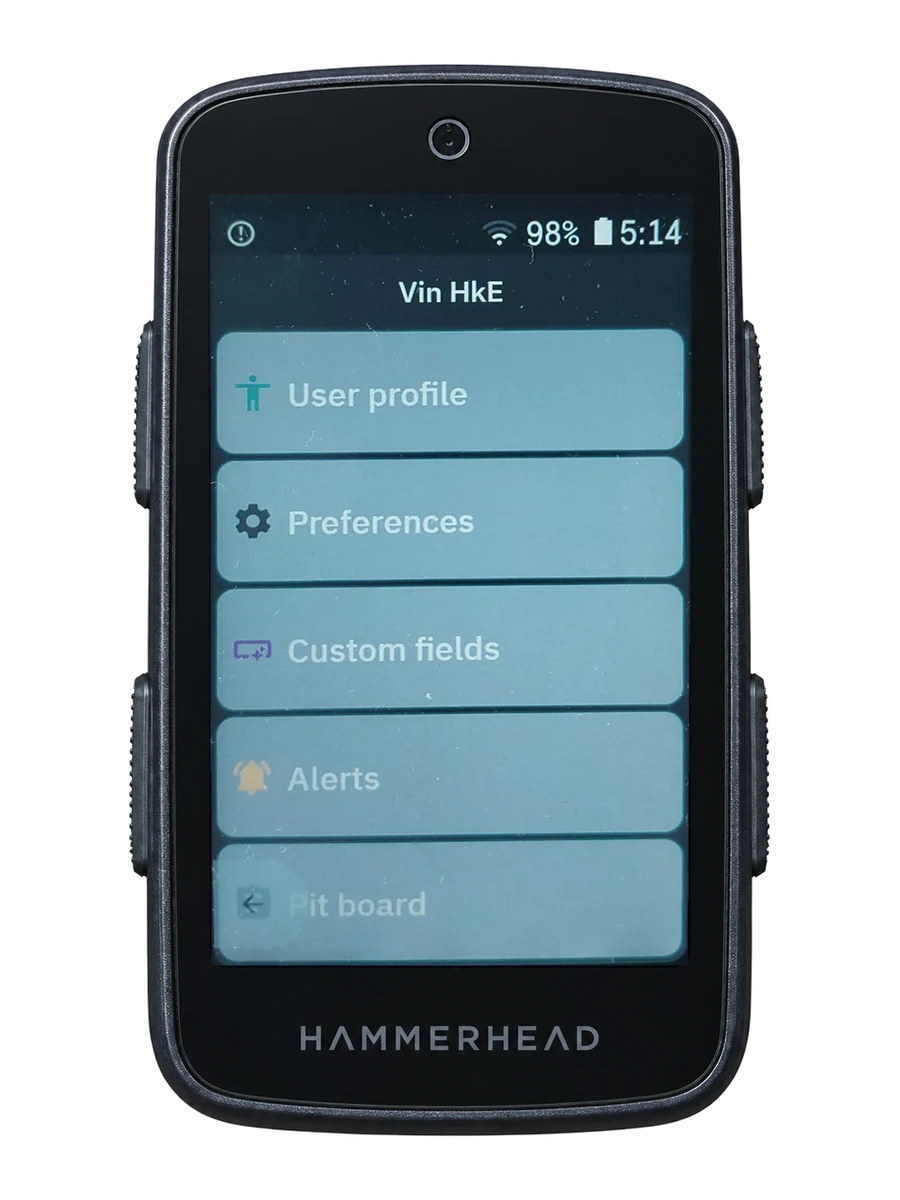
Profile and thresholds
Review your user profile and thresholds before configuring fields that depend on personal zones or reference values.
Keeping them current gives colours, zones and alerts the intended context.
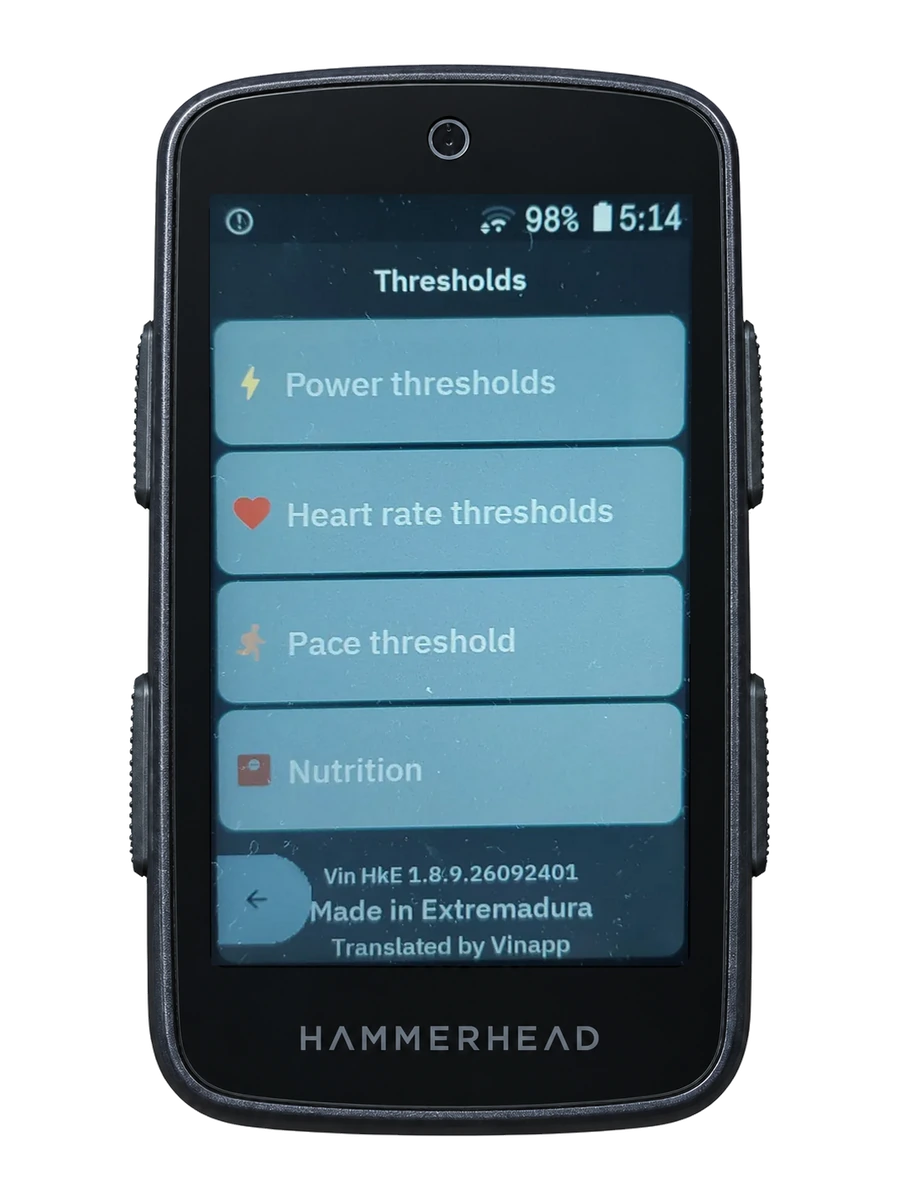
User profile and nutrition
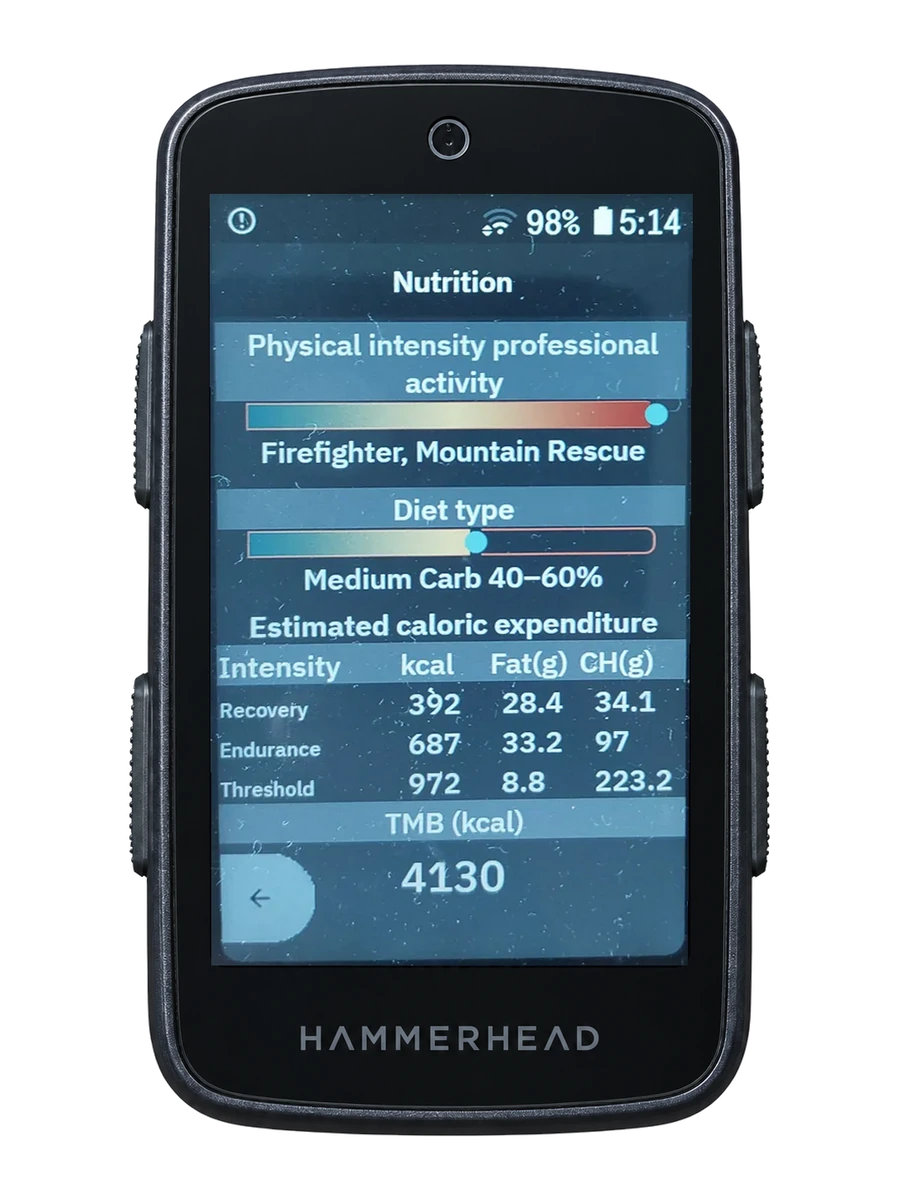
Open the user profile and VinHkE nutrition settings to adjust the base values used on the ride.
The energy view applies that profile to show calories and estimated carbohydrate and fat; these are consistent estimates, not direct metabolic measurement.
Add VinHkE fields to Ride
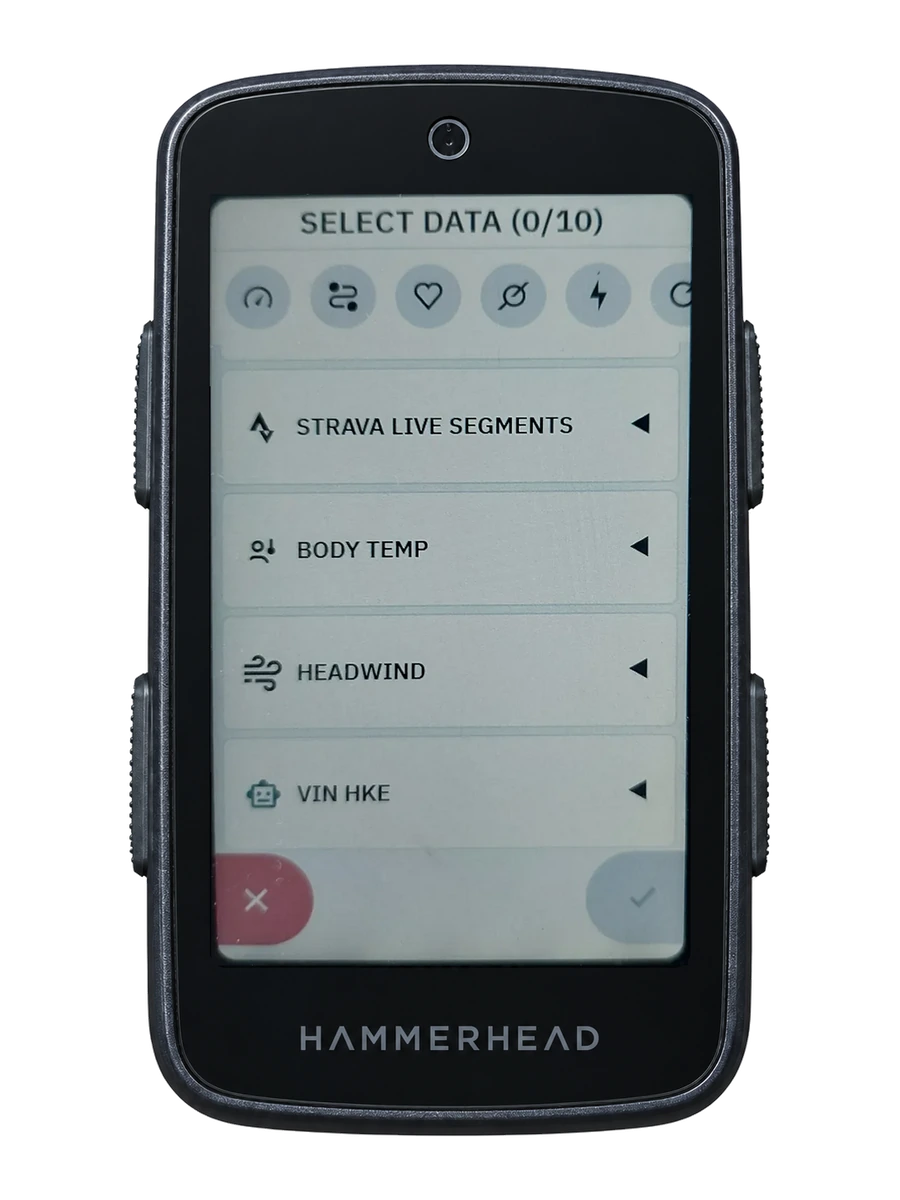
Prepare the composition in VinHkE (Custom Fields, SIX, Grayson, etc.), then add it to a Ride profile via the field picker: Ride → Edit profile → Add field → VinHkE.
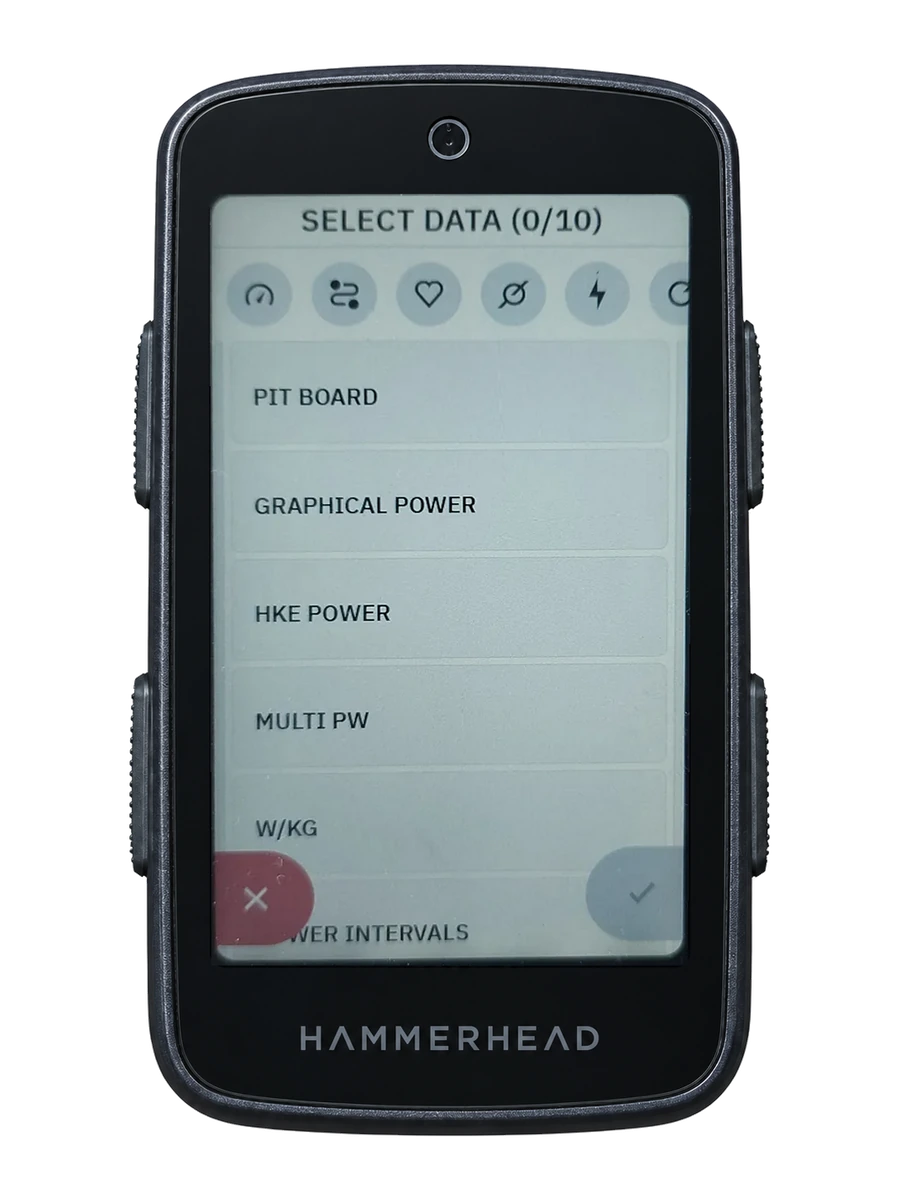
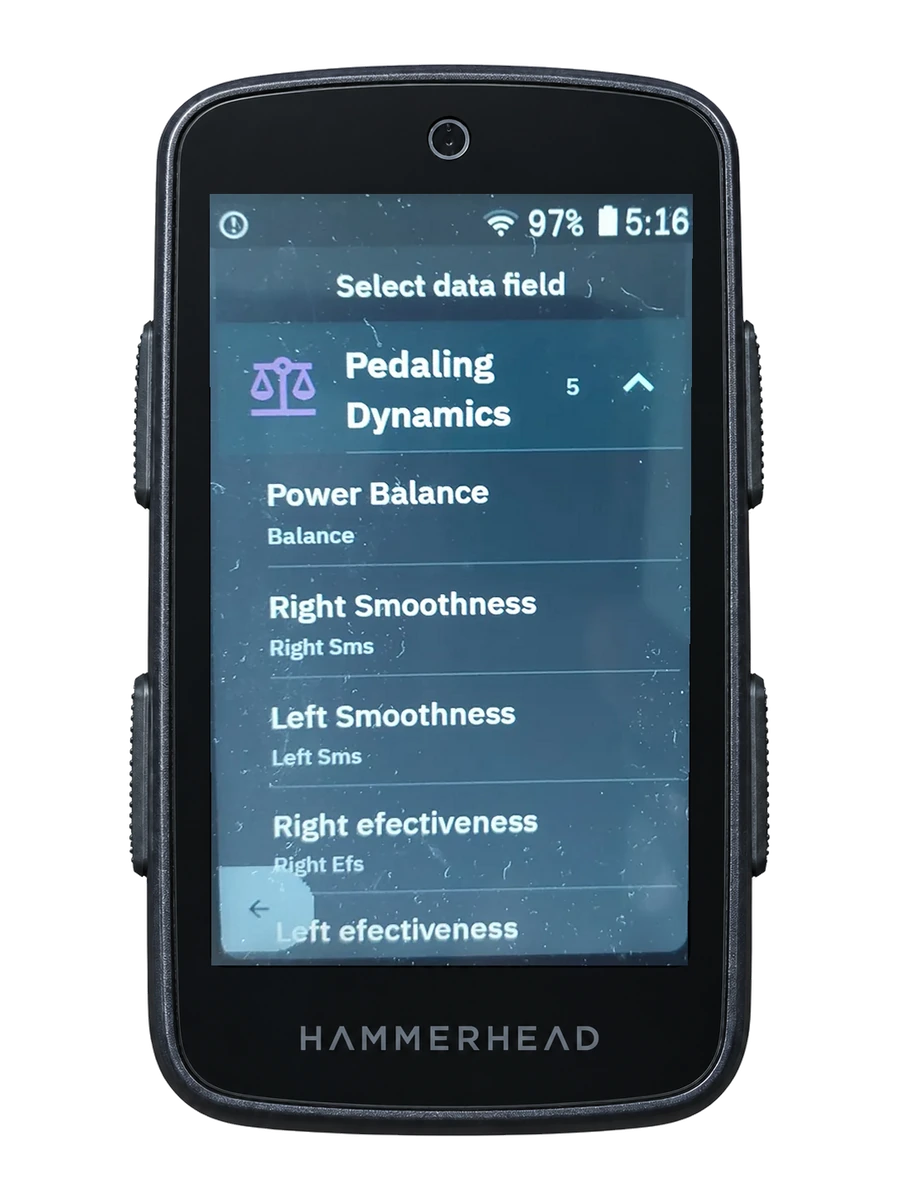
Add Pedaling Dynamics
Add Pedaling Dynamics from the compatible VinHkE field groups and choose inside the widget which metric to follow: left/right balance, Torque Effectiveness or Pedal Smoothness.
The chart shows the last 90 seconds. The image shows the category picker, not the widget view.
Add L/R Balance
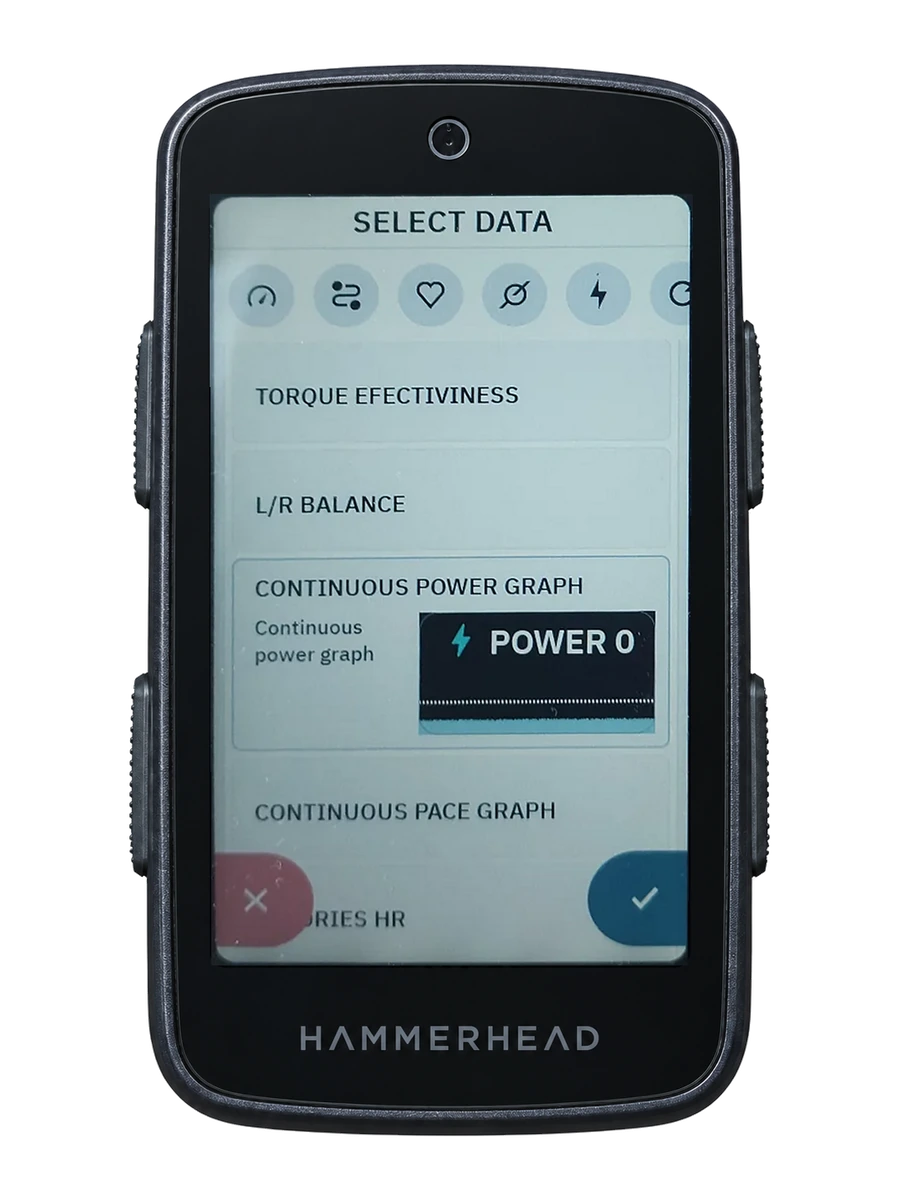
Add L/R Balance from VinHkE advanced fields to a Ride profile.
It needs compatible bilateral data from the power meter. The view shows percentage and estimated power per side, a central indicator and the previous 90 seconds.
Configure Alerts
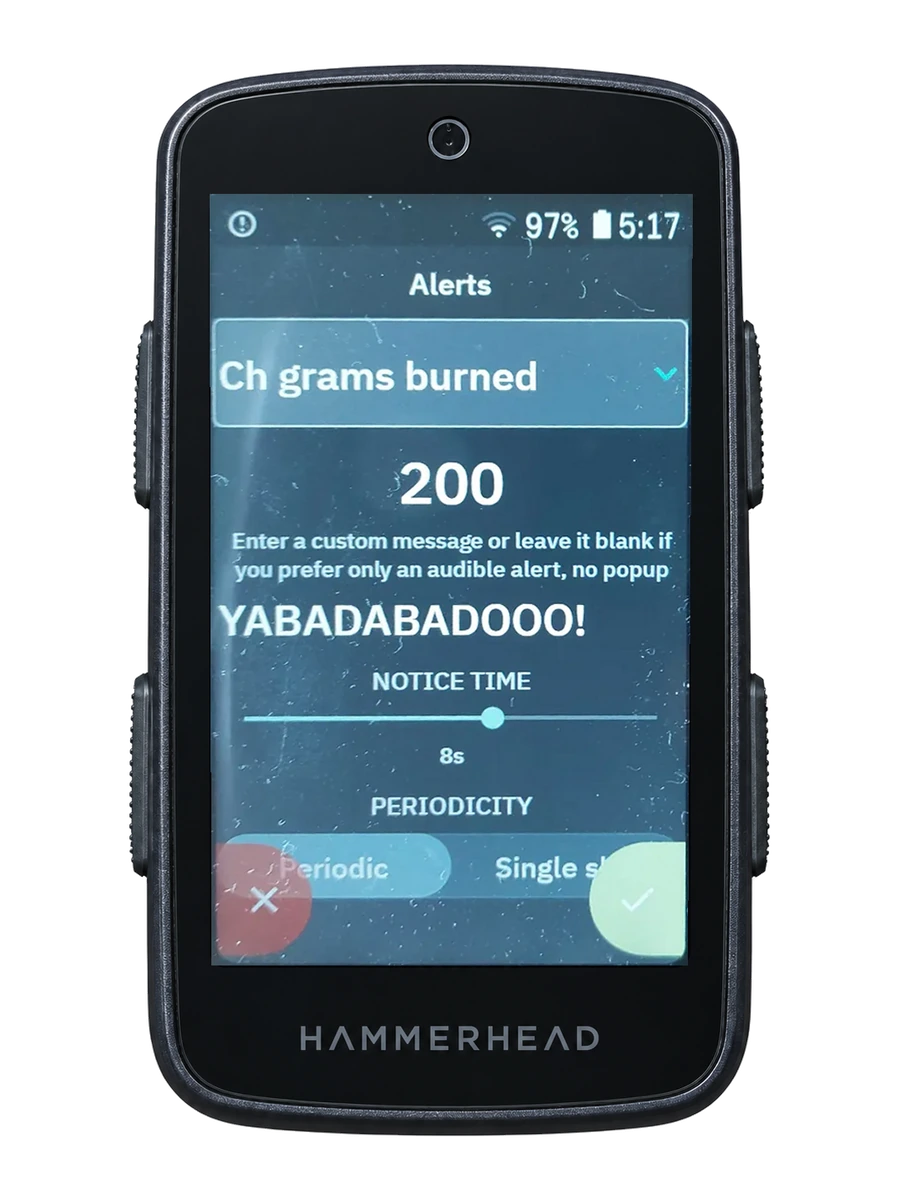
Choose an alert type, set its threshold or interval, and prepare it before starting the activity.
Available alerts cover time, calories, maximum power, maximum heart rate, carbohydrate use, maximum and minimum gear, distance, remaining W′ and Walk-Run.
Configure Pit Board
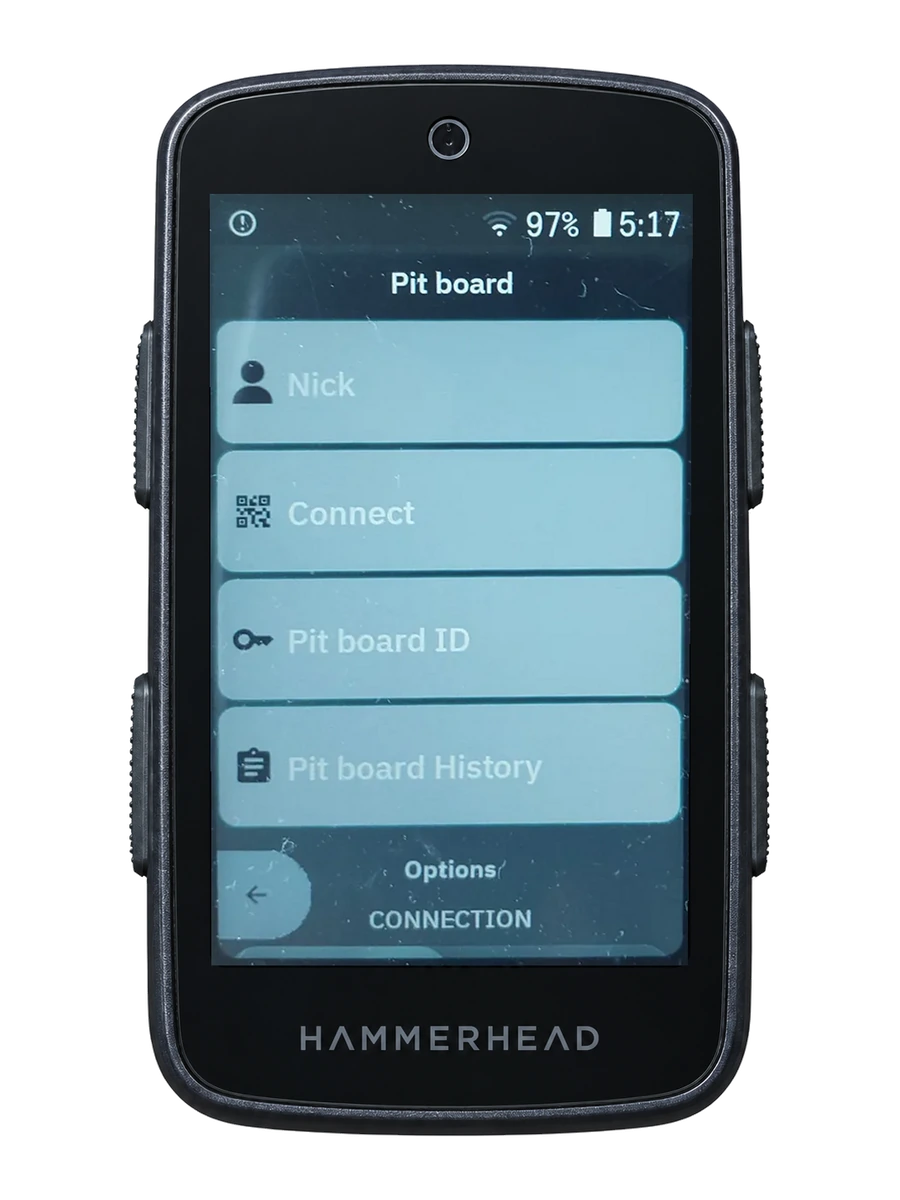
Prepare Pit Board on the VinHkE configuration screen before the ride. The tool allows up to three prepared replies and sharing access with trust.
Configure workouts
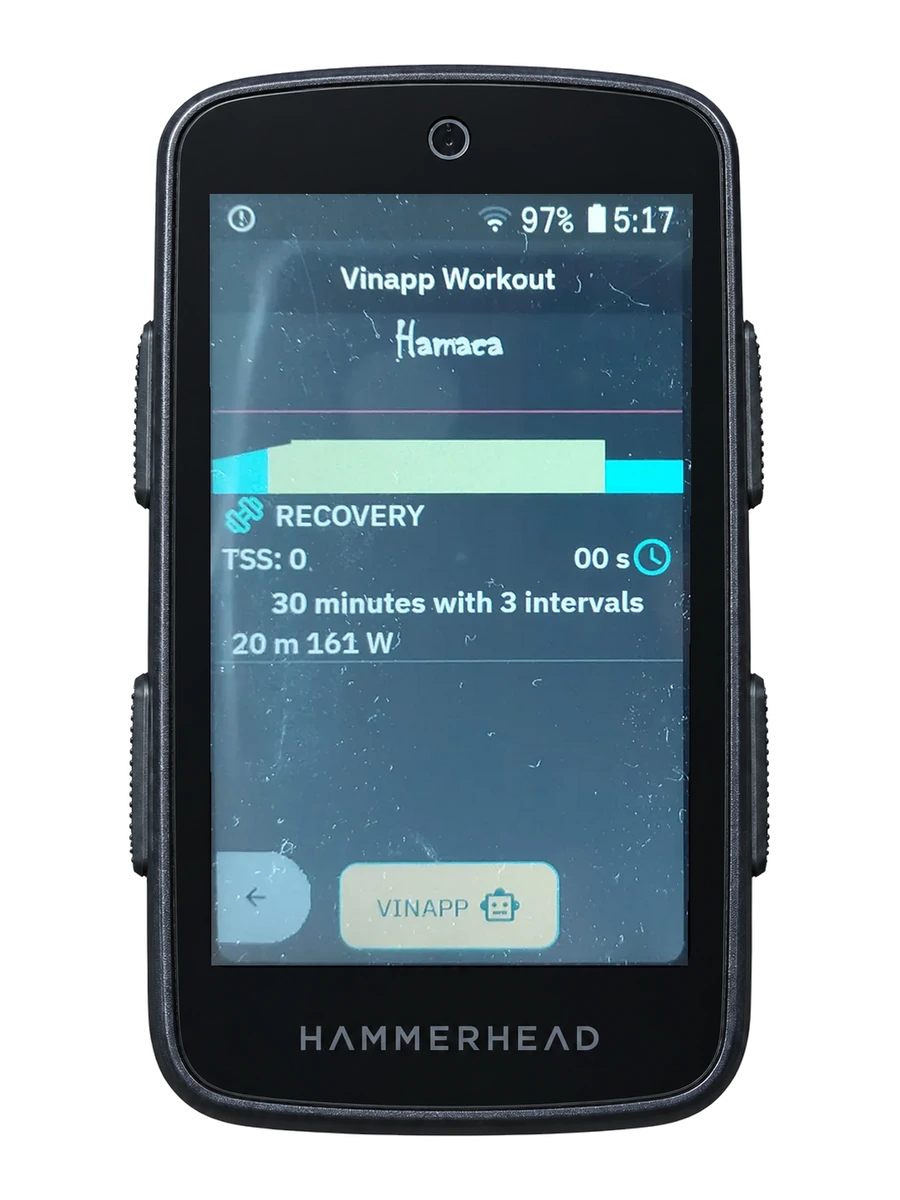
Requires VinApp. Select the workout in VinApp, then add the VinHkE workout widget to the Ride profile you will use.
The widget shows targets and intervals while Ride remains responsible for recording the activity.
Add Virtual Racer
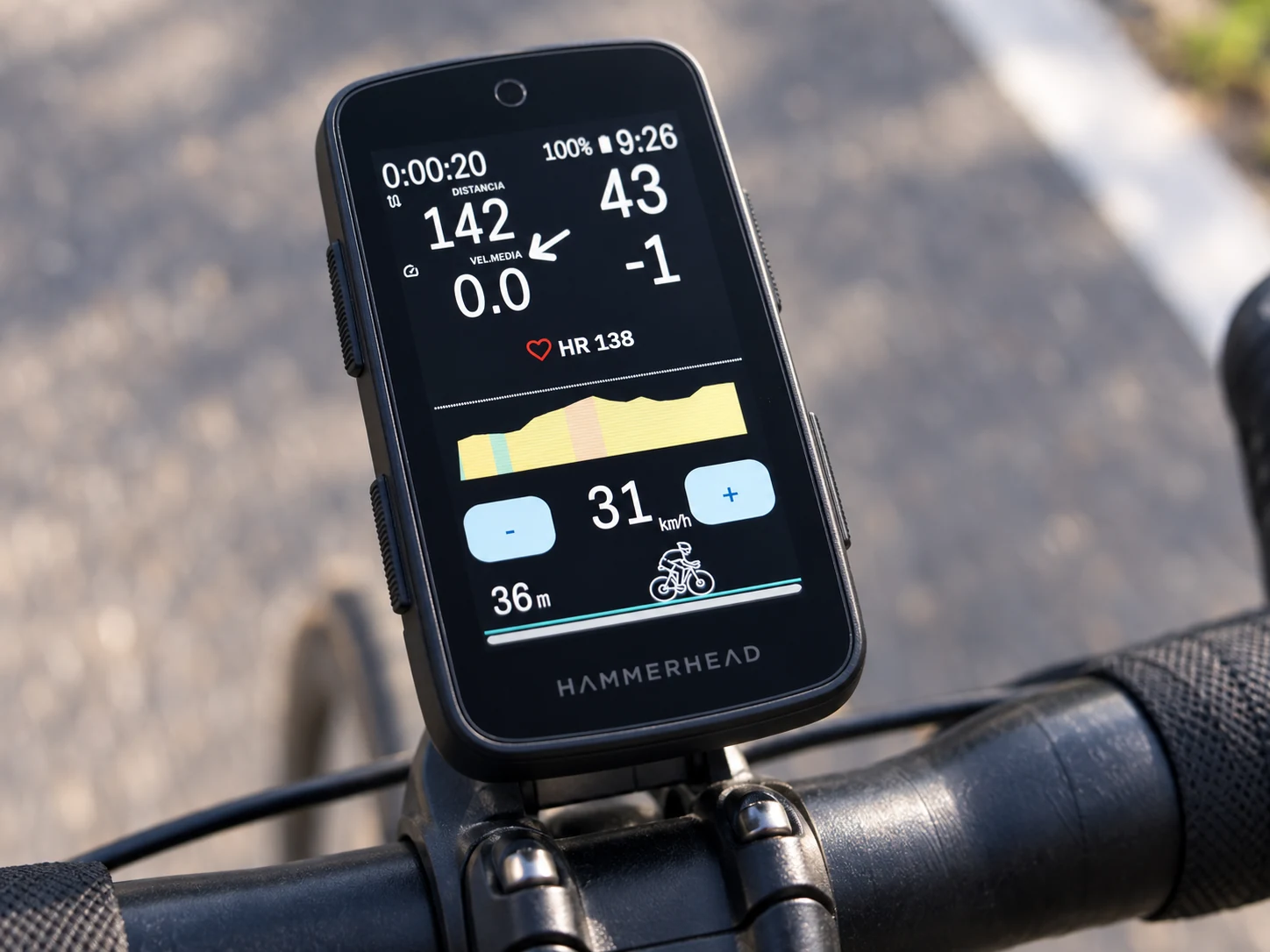
Add Virtual Racer to a Ride profile as a VinHkE widget.
Adjust the reference speed during the ride with the widget's - and + buttons. A double tap resets the reference from your current position.
Use Headwind with VinHkE
Install and configure Headwind before adding fields that consume its data through VinHkE.
Headwind supplies the weather information and VinHkE presents it inside Ride. Requires Headwind.
Discover before you configure
This Help article is the configuration path. The VinHkE product area explains the stories, ride problems and complete feature set in more depth.
VinHkE extends Ride rather than replacing it, and most features do not require VinApp. Workouts are the visible exception.